Showing posts with label Android App Review. Show all posts

Saturday, 28 April 2012

Adobe Photoshop Touch – Worth $9.99?

I used to own an old Windows Tablet that supported pen input, and being able to use Photoshop with a pen was fantastic. Ever since capacitive screen tablets have become popular, those of us who create graphical images have been clamoring for a powerful photo editing and drawing app that puts fingers to good use. The loss of pen input (Galaxy Note users notwithstanding) has made drawing on a tablet a bit tougher, and though you could never get as accurate with the tip of your finger as you can with the tip of a pen, the software could help make the touch experience better.

There have been many drawing apps for Android tablets, such as AutoDesk’s SketchBook Mobile, and Fresco. Though these apps are good in their own ways, to me they have always felt slightly lacking. This is probably because I have been using Adobe Photoshop since the early 90′s and have become accustomed to the way Adobe does things… layers, filter effects, selection tools, etc.
Last year, I had the opportunity to be part of the beta team for an Adobe tablet app codenamed “FunTa”, short for “Fun Tablet”. Yeah, I know, not the best name, but it was just a codename. This tablet app is what is now known as Adobe Photoshop Touch, part of Adobe’s Touch series of apps, which include Adobe Photoshop Touch, Adobe Collage, Adobe Debut, Adobe Ideas, Adobe Kuler, and Adobe Proto.
Before I get into the review, here’s a couple of sample drawings I created using the beta version of Photoshop Touch.


Beyond the Beta
After the beta testing of FunTa was over, I decided to pay the $9.99 for the released version of Adobe Photoshop Touch. Installing the public release I noticed just a few minor differences between it and the beta. Mostly, it was just a final bit of polish added, and the social side was enabled, namely integration with Facebook and Google images. Also, the Creative Cloud, Adobe’s own free 2GB of cloud storage, was now fully active.

The Creative Cloud
Adobe is positioning Photoshop Touch more as a supplement to the full desktop version of Photoshop. To that end, they use the Creative Cloud as a “Dropbox” for your Touch projects that can then be opened in your desktop Photoshop with all layers intact. This is useful if you are using Photoshop Touch to do some work while mobile, and later plan to finish on your desktop. One limitation, however, is that Photoshop Touch can only work on images up to a maximum size of 1600 x 1600 pixels. That’s pretty small for most serious art work. You could, with a little work, use the Creative Cloud to work on smaller portions of a larger desktop project. The reason for the size limitation is purely hardware based. The larger the image, the more memory is required to handle it. Tablets are limited both in RAM and storage space for swapping to disk. Placing a hard size limit to your images allows Adobe to make sure the app runs smoothly on most tablets. In other words, it’s a necessary evil.

Built-in Tutorials
When you first launch Adobe Photoshop Touch, you are presented with two choices: Begin a Tutorial, and Begin a Project.

If you are familiar with the traditional desktop Photoshop, the user interface of the touch version won’t be too unfamiliar, at least in a general sense. But for those who have never used Photoshop at all, there is a bit of a learning curve, especially since most options are presented as simple icons, so it’s not immediately obvious what each icon does. Also, how to use each feature in a useful workflow can only really be learned by doing it. This is why Adobe included a set of tutorials walking you through some common real-world use cases, such as how to add or remove people in images, create camera layers, make photo frames, etc.


These tutorials are great since they walk you through the process step-by-step while actually using the tools in the app. By the time you finish any of these tutorials, you will know how to use all the tools that tutorial was focusing on, plus you get a good idea of some ways to apply those tools. Very nice touch, Adobe.

Starting a Project
When you start a project, you get the option to import an image from your camera, your device’s gallery, Facebook, the Creative Cloud, or Google. If you don’t want to start with an image, you can simply create a blank image of any size up to 1600 x 1600 pixels. In my example, I am going to import a picture from my Facebook feed.

I chose this picture of a cat statue we have in our backyard.


Adding Depth of Field – Blurring the Background
So let’s say you want to take this image and blur the background to create a greater depth of field to the photo, making the cat statue stand out more. To do that, we’re going to have to select the background. Photoshop Touch provides many selection tools and modes, just like the desktop version, but it adds one new selection method unique to the touch version: Scribble Select.

Scribble Select is a special selection mode that takes advantage of your fingertip. The way it works is that you use your fingertip to draw around the very edge of what you want to select, then you draw a second line just outside the first, basically around the edge of what you don’t want to select. Sounds harder than it is. Here’s the first line:

 And here’s the second:

Once the second line is finished, the selection is made. Of course, I said I wanted to select the background, but I selected the cat in the foreground. So next I have to invert the selection. This is done through the selection menu dropdown at the top of the screen.

Once the background is selected, it’s usually a good idea to feather that selection, which essentially just makes it a softer edge. The feather option is available from the same menu dropdown as above. Once you select it, you can control the edge of the selection.

Now that we have the background selection how we want it, we need to apply a blur. The blur effect is found under the FX menu.

Select the Gaussian Blur tool and adjust the parameters until satisfied.

As you can see, the background is now blurred and the foreground pops.

Color Adjustments
Other features ripped from the desktop version includes a whole slew of color adjustments.

 Let’s apply Black & White.


Make it Look Old
Making a photograph look old is usually done using a Sepia tone filter. Adobe Photoshop Touch makes it easy by including an Old Sepia filter under the FX menu.


The Old Sepia filter has a couple of adjustable parameters, namely saturation and intensity. This is a nice addition since it makes it easy to dial in the exact amount of “oldness” you want applied to your photo.


Adding Text
All this image needs now is some text. I decided I wanted to name our little statue “Old Mr. Whiskerson”. The text tool is available under the ampersand icon in the top menu.

The fonts available are plentiful and you should be able to find one that matches your design.

After selecting a font and entering text, you can select a color, change text size and position, and more.

Layers
One of the most powerful features of the desktop version of Photoshop is the concept of layers. Layers contain designs, such as images or text, and can be stacked on top of each other and operated on independently. In this example, when the text was added, it was created in its own layer on top of the cat layer.

Layers can be hidden or deleted, reordered, and their opacities can be adjusted. Also, the blend mode of each layer can be changed to create some interesting effects between layers. Blend Mode basically adjusts how one layer is displayed over another layer, with options such as Darken, Multiply, Lighten, Difference, and more. The best way to see what each mode does is to try it.

Saving and Sharing
Once your work of art is complete, you can just touch the back arrow at the top left of the screen to get the save prompt.

Once you save your project locally, it will show up on your main projects page.

From here you can choose to share your image. The icons across the top of this screen act on the projects. The first icon allows you to upload your project to your Creative Cloud account. The second icon displays the share options, which include Save to Camera Roll (local gallery), Share to Facebook, and Share by Email.


Interestingly, the email option would better be labeled “Share by Email or Other” since what it actually does is open up the standard Android share list so you can choose any app to share to.
Here’s what the final image looks like:


Conclusion
What I’ve done in this review is go through an example project from start to finish to give you a good idea of some of the features that Adobe Photoshop Touch provides. It is indeed very powerful, but also comes at the cost of a moderately steep learning curve. Users of the desktop version should feel right at home after half an hour of use, but newbies will need a little more time to digest all the concepts and tools this powerful app provides. The built-in tutorials are highly recommended for all users to go through at least once.

Let me list what I feel are the pros and cons of the app:

Pros:
  • Layers support
  • Creative Cloud integration
  • Many color adjustment filters
  • Many special effects filters
  • Designed with the fingertip in mind
  • Full set of powerful selection tools, including Scribble Selection
  • Facebook image integration
  • Google image search
  • Very well done tutorials built in to app
  • Makes great use of your tablet’s camera (importing as well as live camera fill during editing)


Cons:

  • Maximum image size of 1600 x1600
  • Touch is still not as good as pen for precise drawing
  • Can get slightly laggy with large images or multiple layers
  • Text is not editable after being added
  • No Google+ images or Picasa integration.

Overall, I give Adobe Photoshop Touch a huge thumbs up. For those of us who use traditional Photoshop on a daily basis, a powerful mobile version is a nice supplement. Will it ever take over for the full version? No, but that’s not what it’s meant to do. I can see using it to create small images for blog posts or websites, but not for doing a final print ad or poster design. Also, it’s a great tool to get inspired and work out some ideas while on the go, a sort of mobile digital sketchpad with enough depth to get your ideas across meaningfully.

For me, it is certainly worth the $9.99 I paid for it. For those just looking for a simple drawing app for your tablet and don’t plan to do anything serious, it’s probably over the top. This is truly a professional tool.

Download Adobe Photoshop Touch from the Play Store link


Friday, 27 April 2012

GroupMe: The Best Group Messaging App Around


Let’s face it, we live in a world of internet-based communication. In fact, most of us tend to keep in contact with our friends and loved ones with messaging clients, especially if your friends and loved ones are spread out around the country or world. The most famed and successful international messaging client is no doubt the Blackberry Messenger by RIM, especially because it featured the popular group chat function. My friends and family aren’t particularly fond of the Android platform, so most of them are on either iPhones or Blackberries. That means unless we use some sort of cross platform IM client like AIM or Facebook messenger, we can’t communicate with each other in real time. Enter: GroupMe— one of the most important apps I use daily. This is not only the best group messaging client, it’s one of the best IM clients, period.
GroupMe works in a simple way. Once you install the app, it scans the contacts in your device in order to give you the ability to create “groups” or categories for certain people– no matter what the platform is. That means those of your contacts who are on an iOS device, Android, Blackberry or even a Windows Phone 7 can communicate with each other at the same time. Once that’s done, the group is given a unique identifier (a special phone number) and you as well as other members of that group will be able to communicate in a group chat in real time— no delays, no lag, all instant! In addition, the UI is seamless with features such as being able to share items like photos and your actual location on a map. It’s easy to transition from IM window to IM window and it’s fairly straightforward to edit and change your various groups. Oh and for those who are in the corporate world like I am— there’s a handy conference call feature that is available which allows any user to call the group’s phone number in order to open up an instant conference call among all the members of the group.
Sure there’s WhatsApp, KIK and other IM clients out there, but GroupMe trumps them all. It features a simple UI, allows for sharing of photos and user locations and features conference calls. It doesn’t get much better than this folks. It’s available for all Android 2.1+ devices now. So if you are one who is in constant communication with your friends and family, getting this app is a no brainer, so make sure you get it— now. You can download it from Google Play

DirecTV Everywhere Android app now streams HBO, Starz, Showtime, and more


Here’s something you don’t see every day: a U.S. television provider recognizes that its paying customers would like to be able to access video on their mobile devices, and that company steps in to provide it. And as an added bonus, it’s available to Android users first.
DirecTV has updated its official Android application to support on-demand streaming to phones. The latest version allows users to view movies and original programming from HBO, Cinemax, Encore, Showtime, Starz and other popular destinations. The app works only in the United States and not all devices are supported, but as Engadget points out, this is one of the rare times when a media app is available on Android phones before it goes to iPhone. (And yes, the app supports some Android tablets.)
There’s no live streaming of DirecTV channels yet, but users can see plenty of their favorite shows at their convenience. The DirecTV Android app also supports browsing television listings by channel or broadcast time, and helps fans discover new content by seeing what’s trending. Once a user finds what he or she wants, the app can remotely set recordings through the DVR. It also sets parental controls from the device and includes account management tools.
DirecTV is available for download now from Google Play Device and version compatibility will vary. Most Android 2.2 or later devices shold be able to run it. Here’s a list of requirements for other features according to DirecTV.

REQUIREMENTS
- Compatible with most Android phones running 2.2 or later.
- DIRECTV customers must have a residential home account registered on the DIRECTV website to watch On Demand content and access recording functionality.
- Watching On Demand content requires an active Wi-Fi or 3G/4G Internet connection. For best performance, connect to a strong Wi-Fi signal.
- Available content is based on your current programming package and premium service. Not all content is available to stream at this time.
- Scheduling a recording requires a Wi-Fi, Edge or 3G/4G Internet connection and a DIRECTV Plus® DVR (models R15, R16, R22), DIRECTV Plus® HD DVR (models HR20, HR21, HR22, HR23, HR24) or TiVo® Series 2 receivers with 6.4a software. Receivers do not require phone or Internet connection to schedule a recording.
- In rare instances, scheduled recording(s) may not be recognized.
- On Demand scheduling requires a DIRECTV Plus® HD DVR (model HR20 or later or R22) connected to the Internet.

Google Play Movies now open for rentals in Australia


Add another country to the list of nations that support Google Play Movies. Google has announced today that customers in Australia can now rent movies from the Play Store. The announcement follows rollouts in France and the United Kingdom, showing that Google is finally making progress – however small it may be – in rolling out its service globally.
Play Movies is an on-demand rental service that streams movies to Android phones or tablets. Price and selection varies in different countries, but it’s typically a mix of old films, international blockbusters, and some home-grown produced content as well. In the case of Australia, their are hits like Moneyball and Bourne Ultimatum, as well as the locally-made Snowtown and Chopper.
Android users can rent Play Movies for $3.99 to $6.99 depending on the age of the film. New releases are $5.99 for Standard Definition and $6.99 for High Definition. Older films rent for $3.99 and $4.99 for SD and HD respectively. (All prices in AUD.)
Renters have 30 days to start watching the film, but the viewer has only 48 hours to view the film once play has started. The app can download a film for temporary cache, so it can work if you need some entertainment while on a plane on long trip.
Head to Google Play if you’ve been itching to rent on your mobile. Please be aware that you cannot access Play movies if you have a rooted device.

Scalado releases first Android app, ‘Album’


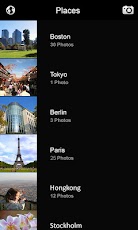
Scalado today released their first Android application, Album, an alternative to the gallery client that comes with your smartphone or tablet.  Available in Google Play today, the app runs 99¢ and works on 2.3.7+ devices, including tablets.


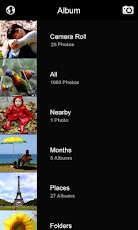
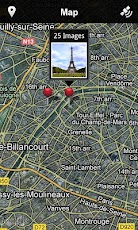
What makes Album different from the standard gallery app that comes preloaded on your handset?  It's fast, intuitive, and organized into different views.  Want to check all the pictures you've taken in April?  Bingo.  Want to see your photos listed in a map view that shows exactly where they were taken?  Presto.  Pull up the Nearby view and see photos taken close to your current GPS location.


We've played with a review build of Scalado Album for a week now and have come to appreciate its browsing, zooming, and panning speeds.  The various views aren't necessarily groundbreaking but they're handy to have in one collection.  One feature that I do enjoy is the animated thumbnail previews of videos when looking through folders.  This is convenient to have when you've recorded multiple clips in succession and need to quickly identify a particular video.


Features:
Superior gallery performance
Clean and smooth user experience
Intuitive browsing and navigation
Instant pan and zoom into every detail
Animated video thumbnails
Works on Android tablets


Views:
All - Shows all photos on the device
Places - Groups images into named geographical locations
Nearby - Shows all photos taken nearby the current GPS location
Map View -  Mapping of photos accessible from all grid views
Months - Groups images after calendar month captured
Folders – Shows images grouped after existing folders
Camera Roll - Shows all photos taken with the device camera

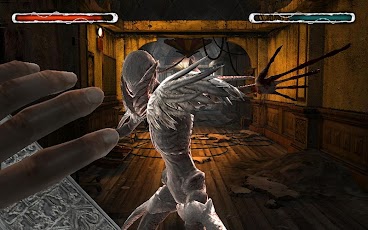
Review of Dark Meadow: The Pact, a Tegra 3 Game With Visually Stunning Graphics and Awesome Game Play


Remember back in the day when you could play cool PC games like Myst, where your fate was in your hands and it was entirely up to you to figure out what to do next? Well, NVIDIA recently teamed up with Phosphor games to bring us Android lovers a game similar to that but on a much higher level – Dark Meadow: The Pact. Now available for free in the Google Play store, Dark Meadow will provide you hours of nonstop fun all the while enjoying some of the greatest graphics I have seen yet on any Mobile device.
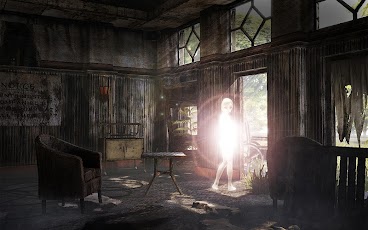
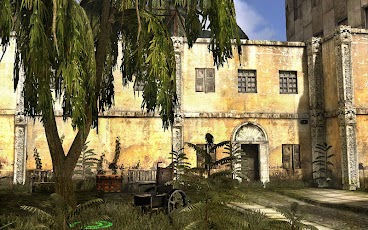
Taking full advantage of Nvidia’s Tegra 3 quad-core processor, Dark Meadow is powered by the “Unreal Engine” that is responsible for games such as Gears of War and Infinity Blade. It is safe to say that Dark Meadow is approaching console quality gaming and when I played it on the Transformer Prime I never experienced any lag to speak of. This quickly became my most favorite game on Android hands down. I had an opportunity to spend some time with this game over the past day and I’ve compiled a short review and demo video that you should check out after this break.
Once the game begins, you awake dazed and confused in an abandoned mental hospital, only to be befriended by what later appears to be the only living human left in the joint. Stuck in a wheelchair, your new friend is older and has obviously been stuck here for a while. He starts by giving you a short lowdown and wants to offer his knowledge and expertise in hopes that you, the younger agile type, will find a way for the two of you to get out of the hospital in one piece.
As if navigating your way through the old and maze-like building isn’t enough of a task, the old man warns you of the hospital witch, and her demon-esue posse. You never know when one of these creatures are going to pop up out of nowhere causing you to draw one of your weapons resulting in an all out battle. In the beginning, you start out with an old school crossbow for those enemies at a distance, and a shabby looking sword for those up close and personal encounters. As you kill your foe, not only do you gain experience points, but you collect coins that you can use in the store to purchase weapons and improve your tactical skills. Speaking of collecting coins, you can find bags of gold and gems throughout the hospital so you want to be sure you’re searching high and low for hidden goodies.
The game mechanics are fairly simple. You will notice green circles throughout rooms and hallways that denotes spots that you can move to. Tap on the nearest circle and you walk to that location. Once standing still, you can look everywhere in a 360 degree radius as well as up and down. When in battle mode and your crossbow is drawn, you simply pull back on the bow’s string, aim your trajectory, and let go of the arrow. When using the sword (or other close quarters weapons) you can swipe in a slashing motion to strike your opponent as well as tap and hold to block. Pressing the left and right on-screen buttons allow you to dodge.

Without giving away to much of the game that is all I really want to tell you guys. I’ve put together a short video showing the game in action but I really think you need to check this out for yourself. NVIDIA and Phosphor games have created a winner in my book, and being that it is a free game is a no brainer. So if you have a Tegra 3 powered device, I highly recommend checking it out! Also, don’t forget to enter out contest to win a new Transformer Prime and Keyboard dock brought to you by NVIDIA and Phosphor Games

Play Store download Link


Make Free WiFi Calls From Android Phone Or Tablet With Groove IP

The quest for making free calls over WiFi with an Android device is not a new topic, but if you’ve gone down this road you’re probably familiar with apps like sipdroid or csipsimple. If those two names are familiar then you also know you had to deal with Google Voice Callback, pbxes, or SIP accounts and possibly some other forwarding trickery to get the app to work. It’s possible that you’ve even tried to set these apps up and failed after not understanding exactly what needed to be done. Enter GrooVe IP, where all you need is a Google Voice account to get started. If you like simple and something that just “works” and works well, hit up the break for more. 
GrooVe IP works similar to making calls from Gmail by connecting directly to Google Voice to make and receive calls. This means that all you’ll need to use the app is a Google Voice account that is linked to a Gmail account and you’re good to go. After installing GrooVe IP, you’ll simply need to login with your Google Voice credentials. You’ll also need to go into your Google Voice settings and check off forwarding to Google Chat. Doesn’t get much easier than that right? It’s recommended that you sign out of Google Chat  or Google Talk while using the app, but leaving Google Talk signed in on my Android device never posed any issues. I also have my Google Voice number forwarded to other places besides Google Chat and this posed no issues when receiving a call.
You’ll have the choice of either using GrooVe IP’s dialer or your native dialer to place calls. When using your own dialer, you’ll be prompted to use GrooVe IP or the mobile network itself. Personally, I prefer the look of the native dialer and there didn’t seem to be any loss of functionality by doing so. Incoming calls however will use GooVe IPs system, but there is nothing wrong with that system as everything from the dial pad to options like Mute and Blutooth worked as expected.
At home my 3G service is a bit shaky, so I am going to sick to WiFI call quality for review purposes. A feature that I found very useful was that if 3G calling is turned off within the app (which it is by default), GrooVe IP only connects when WiFi is connected. Since I have no cell service in my home, if already running in the background, GrooVe IP connects and logs in once a WiFi signal is connected. You can also set a preference for your native dialer to always use GrooVe IP to place a call if you are connected to WiFi. The call quality was absolutely fantastic, and to take my own word for it, I placed calls to myself on another line to be able to hear the call quality first hand. I also made a large number of phone calls to others well over 45min in length without any dropped calls or voice transmission issues. In the audio settings you’ll find plenty of options for echo cancellation, microphone gain, ringtones to use for contacts. There is also a troubleshooting section you’ll find more options to tweak any issues you may have using a tablet to place calls or to keep the screen on during a call.

A last huge positive for this app is that the developer is very active in both communication and app fixes. Also note that since GrooVe IP is connecting directly to Google’s servers, both incoming and outgoing calls will use your GV number.
So, if you’re looking for a solid WiFi calling solution and want to just log in and call, then this is the app for you. It’s available in the play store Play Store  for a one time fee of $4.99( Lite Version also available). This should be worth every penny for someone short on minutes or that doesn’t have solid cell service while out and about or at home. Don’t forget that a SIP solution can be a huge pain for people to figure out and configure. Be sure to let us know what you think.

Thursday, 26 April 2012

Google Drive The Online Storage For Keeping All Your Files In Sync


There are many online cloud storage facilities are available for the different devices that are out there. There is iCloud the cloud service from Apple for its devices, live mesh from Microsoft which allows you to sync all your files with the windows devices including your windows device.
But from all of them the most famous and widely used is the Dropbox cloud storage which is available for all the devices that are there in the market through its app. Doesn’t matter whether you are using android, iOS or windows mobile dropbox was there to help you to sync your files across multiple devices.


Now Google have launched their own cloud storage which is specifically meant for their android devices and is called Google Drive and will allow you to sync all the Google related contents easily across your entire android device.
Google have also introduced a host of new features into their cloud storage system which will make sure that it keeps up to your needs. According to the Senior VP of chrome and Apps at Google Sundar Pichai he mentions that Google Drive is more about creating and collaborating with storage rather than just simple storage.
At its launch Google Drive comes with 5Gb of free storage and you can expand this storage to 25Gb for just $2.49/month. If you think that 25Gb isn’t enough for your storage needs than you go for 100Gb and 200Gb which are available for $4.99/month and $9.99/month respectively.


If you are a part of large corporation and you need immense cloud storage then don’t worry because you can get storage spaces of up to 16TB for $799/month.
The Google drive desktop client is available for windows, OS X and android along with iOS support. You can download the android app for your device from the Play Store.


Features Of Google Drive:

  • Google Drive has replaced the Google Docs. With the new service you can instantly create new documents, spreadsheets and presentation which you can share with your friends and also see the changes being made in real time.
  • Google Drive links had replaced the bulky attachments so now you can access them very easily
  • If you upload any pictures or videos to Google drive it is instantly available in your Google+ account. So you are just a click away from sharing
  • Google drive features a powerful search option which can look up contents by search words or even filter by file types. The new option in search is the ability to recognize images and texts from any scanned documents.
  • Support for 30 different file types allowing you to access them from Adobe Photoshop, illustrator and HD video. You can view the contents with installing the necessary software’s.
  • With Google drive app you can create and view files from a variety of different apps directly
  • You can easily share a document with multiple people and also edit permission whether they can edit or comment on the file.
  • Keep a record of all the changes that are being made to a document which can go back up to 30days. Every time you save a document a new copy is saved.
So here are some of the features of Google Drive and do let us know what kind of service it will be.


Monday, 9 April 2012

Instagram For Android : App Review

Instagram for Android has finally arrived, a free social image sharing app that has already been downloaded more than 1 million times. You start with creating a free account and linking your Facebook, Twitter, Foursquare and Tumblr accounts with it (note that app requires access to post on your behalf to these networks). Once done, you can choose to follow instagram updates from your friends within the app - these appear in the home tab as your news feed. You can choose to shoot a new picture or upload one from your gallery, add a desired effect, add an optional comment and choose which social networks the image should be shared on. However, much to our dismay, the Android versions does not offer as many picture effects as the iOS version yet.


 Features:

☆ 100% free custom designed filters and borders
☆ Lux works its magic by making your photos more vibrant and brings out details in your photos you couldn't see before
☆ Instant sharing to Facebook, Twitter, Tumblr, and Foursquare (Flickr coming very soon)

☆ Interact with friends through giving & receiving likes and comments

☆ Works with Android versions 2.2 and above that support OpenGL ES 2
☆ Full front & back camera support