Showing posts with label android app. Show all posts

Saturday, 28 April 2012

MIUI Launcher modded for any ICS ROM

No two ways about it: the MIUI family of ROMs has a unique visual approach. Blending elements from Android, iOS, WebOS, and plenty of manufacturer skins to boot, it’s become one of the most popular ROMs for those who love to tinker with their user interface. The Android 4.0 version MIUI 4 is still a work in progress, but if you’ve got an Ice Cream Sandwich phone or ROM, you can try out the MIUI 4 launcher and lockscreen now, thanks to RootzWiki member “hoppermi”.


There’s nothing in the MIUI home app that you haven’t seen before in launchers like Nova or Apex, and those have a lot more features. MIUI just looks good doing it. The launcher tends to take its iPhone inspiration pretty seriously, but it’s also got a lot of customized widgets that fit in with its own theme. Most of these replace Android’s standard widgets or duplicate others, like the HTC clock.


Performance is a bit of an issue, but this is a beta release. After installing and activating the launcher for the first time, the slowdown from the app itself and its many transitions and animations tends to go away. I also with it had more settings, but then again, MIUI is all about style. On that note, the ported launcher technically supports themes, but there are few or none available for the Galaxy Nexus’ 720p resolution, so I didn’t get to try them out.

Top 10 Android app updates: Photowall, AVG Antivirus, Nova Launcher, Samsung Unpacked

Welcome back to our weekly Top 10 Android App Updates column, where we take a look at the most upgraded apps for the week. I’ve found that one of the best ways to discover useful apps is to look at what people are actually updating, and not focus on which apps have the most installs.


To find the most updated apps, I turn to AppAware. It’s a great tool that shows me which apps have active support from their developers and sometimes reminds me of an old app that I might have removed long ago. Make sure to install it so your activity can help determine our weekly top 10 list.


This week I’m going to do things a little different. I normally filter out apps that have over 10 million installs, but I’m going to make an exception for popular apps that had significant updates. I hope you enjoy this weekly feature and discover some apps that you might find useful.


Twitter – Version 3.2.0


What’s new in this version:

  • Updated design and improved relevance of Discover stories
  • Activity in Discover tab shows who your connections follow, updates to their lists, and which Tweets they retweet and favorite
  • Spelling suggestions and related searches in search results
  • Username autocomplete in search
  • New push notifications for when your Tweets have been retweeted, favorited, or when you have new followers
  • New languages: Traditional Chinese, Swedish, Norwegian, Danish, Finnish, Polish, Hungarian, Thai


Most of you have the Twitter app and know what it does, but this week they rolled out a pretty big update. The design of the Discovery tab got a makeover to show more activity, push notifications received more control, and eight new languages were added.


What’s new in this version:

  1. NEW  Instagram photo feed! (beta)
  2. Reduced memory use, increased performance.
  3. Lots of bug fixes. A couple crash fixes.
PhotoWall is a cool app from top Android developer Larva Labs that shows your photos as your wallpaper. This week the app saw an update that added Instagram support, and increased performance. It’s free so check it out if you need a new wallpaper.

Taptu – Version 2.1.3

What’s new in this version:

  1. New features now available:
  2. Synching across multiple devices: Log in to Taptu using Facebook, Twitter, Linked or G Reader to synch between your different devices. When logged in, your streams and stories that you’ve read or bookmarked will be there for you.
  3. Create a stream for everything: If you are looking for something in particular, you can now create a keyword-based stream.
  4. Speed and performance improvements: faster and more fluid, Taptu has gotten a significant boost in speed.
TapTu saw a minor update last week, but they are back again with a new look. Their major new feature this time is user accounts that let you set up your streams on any Android device and have them automatically populate on another device. There is no need to register with Taptu, as your user account just requires you login to your Google, Facebook, Twitter or LinkedIn account.

Antivirus Free – Version 2.11

What’s new in this version:
  1. Scan SD card – Enhanced file scanning feature.
  2. Tune Up – allows you to view your phone’s battery and app storage consumption to help you optimize your mobile device’s resources. It is available for users of the Free version of the app for a trial period of 14 days.
  3. New look – Fresh new look added for an improved look and feel.
  4. Widget – We removed the app widget following feedback for users and are now working on a new and improved widget with better functionality and ease of use.
Some say Android doesn’t need antivirus software, but there’s no harm in being extra cautious. AVG just updated their Antivirus Free app with a new look, new widgets, and a Tune Up feature that lets you optimize your device’s resources.


What’s new in this version:
  1. Supports moving to SD-card
  2. Crash-fix
  3. Fixes the bug not showing drawing lines in Galaxy Nexus
  4. Supports more phones
AfterFocus has become a fan favorite of the site and been featured several times, and this week they released their first update. The latest version is mainly bug fixes, but we also hear a Pro version is coming next month.


What’s new in this version:
Fixed:
  1. Crashes related to virtual keyboard on some HTC devices
  2. Crashes related to non-standard ROMs (e.g. CyanoGen)
  3. Crashes related to text selection
  4. General stability issues
Opera Next gives you a sneak preview of what’s to come in future versions of Opera. This browser app lets advanced users try out new features still under development and provide feedback on how to make it even better. The latest update includes mostly bug fixes.


What’s new in this version:
  1. Increased maximum volume of S/W audio to 200%
  2. Improved text subtitle drawing speed.
  3. Improved integrity checking of internal modules.
  4. Added options for on-screen elapsed time, battery/clock display; Background color and Bottom placement.
  5. Added support for .mov text subtitle.
  6. Added shuffle/loop option. (Long click the next video button)
  7. Added border thickness option for text subtitles. (except SSA)
  8. Added fade-out option for subtitle text.
MX Player is one of the more popular alternative video players that can handle just about any video codec out there. The latest update increased volume, improved subtitles, and added several on-screen video controls.


What’s new since Version 1.1.0:
  1. Custom app drawer tabs and folders (Prime)
  2. Vertical scroll in app drawer
  3. Configurable drawer transparency
  4. Bulk add to desktop or folder
  5. 1×1 widgets in dock
  6. Tablet optimizations (Dock, full screen app drawer)
  7. System shortcuts for app drawer (Works with AOKP Navbar)
  8. Activities shortcut
  9. Many optimizations and bug fixes
  10. Fix folder custom icon scaling
  11. Fix FCs
  12. Updated Translations
  13. Fix startup FC and misc fixes
Android users have a ton of options for alternative home screens and Nova Launcher is one of the newer apps on the rise. It only has 100,000 installs, but the average review score is 4.6. It is targeted for devices with Android 4.0+ and includes a ton of performance tweaks and eye candy.


What’s new in this version:
  1. Worked on more devices
This week Samsung updated their Unpacked app so that it actually works on Samsung phones. Make sure you grab this app if you want to watch the unveiling of the next Galaxy on May 3rd.


What’s new in this version:
  1. 5 new second-class effects are added to ‘Sketch’ and there are 9 in total.
  2. Newly add @ function, available for Sina and Tencent only at present.
  3. Newly add User Guides and Shooting Skills in Settings.
  4. Click the thumbnail image on share page and you can preview shared photo in big size. ‘Rotate’ is also available there.
  5. Newly add Guides for greenhands when start Camera360.
  6. Tips of shooting is added when photo processing.
  7. Optimize share function and make it easier and faster.
Camera360 is another one of our favorite camera apps. The latest update brings new effects, user guides to help you take better photos, and optimized share functions.


Adobe Photoshop Touch – Worth $9.99?

I used to own an old Windows Tablet that supported pen input, and being able to use Photoshop with a pen was fantastic. Ever since capacitive screen tablets have become popular, those of us who create graphical images have been clamoring for a powerful photo editing and drawing app that puts fingers to good use. The loss of pen input (Galaxy Note users notwithstanding) has made drawing on a tablet a bit tougher, and though you could never get as accurate with the tip of your finger as you can with the tip of a pen, the software could help make the touch experience better.

There have been many drawing apps for Android tablets, such as AutoDesk’s SketchBook Mobile, and Fresco. Though these apps are good in their own ways, to me they have always felt slightly lacking. This is probably because I have been using Adobe Photoshop since the early 90′s and have become accustomed to the way Adobe does things… layers, filter effects, selection tools, etc.
Last year, I had the opportunity to be part of the beta team for an Adobe tablet app codenamed “FunTa”, short for “Fun Tablet”. Yeah, I know, not the best name, but it was just a codename. This tablet app is what is now known as Adobe Photoshop Touch, part of Adobe’s Touch series of apps, which include Adobe Photoshop Touch, Adobe Collage, Adobe Debut, Adobe Ideas, Adobe Kuler, and Adobe Proto.
Before I get into the review, here’s a couple of sample drawings I created using the beta version of Photoshop Touch.


Beyond the Beta
After the beta testing of FunTa was over, I decided to pay the $9.99 for the released version of Adobe Photoshop Touch. Installing the public release I noticed just a few minor differences between it and the beta. Mostly, it was just a final bit of polish added, and the social side was enabled, namely integration with Facebook and Google images. Also, the Creative Cloud, Adobe’s own free 2GB of cloud storage, was now fully active.

The Creative Cloud
Adobe is positioning Photoshop Touch more as a supplement to the full desktop version of Photoshop. To that end, they use the Creative Cloud as a “Dropbox” for your Touch projects that can then be opened in your desktop Photoshop with all layers intact. This is useful if you are using Photoshop Touch to do some work while mobile, and later plan to finish on your desktop. One limitation, however, is that Photoshop Touch can only work on images up to a maximum size of 1600 x 1600 pixels. That’s pretty small for most serious art work. You could, with a little work, use the Creative Cloud to work on smaller portions of a larger desktop project. The reason for the size limitation is purely hardware based. The larger the image, the more memory is required to handle it. Tablets are limited both in RAM and storage space for swapping to disk. Placing a hard size limit to your images allows Adobe to make sure the app runs smoothly on most tablets. In other words, it’s a necessary evil.

Built-in Tutorials
When you first launch Adobe Photoshop Touch, you are presented with two choices: Begin a Tutorial, and Begin a Project.

If you are familiar with the traditional desktop Photoshop, the user interface of the touch version won’t be too unfamiliar, at least in a general sense. But for those who have never used Photoshop at all, there is a bit of a learning curve, especially since most options are presented as simple icons, so it’s not immediately obvious what each icon does. Also, how to use each feature in a useful workflow can only really be learned by doing it. This is why Adobe included a set of tutorials walking you through some common real-world use cases, such as how to add or remove people in images, create camera layers, make photo frames, etc.


These tutorials are great since they walk you through the process step-by-step while actually using the tools in the app. By the time you finish any of these tutorials, you will know how to use all the tools that tutorial was focusing on, plus you get a good idea of some ways to apply those tools. Very nice touch, Adobe.

Starting a Project
When you start a project, you get the option to import an image from your camera, your device’s gallery, Facebook, the Creative Cloud, or Google. If you don’t want to start with an image, you can simply create a blank image of any size up to 1600 x 1600 pixels. In my example, I am going to import a picture from my Facebook feed.

I chose this picture of a cat statue we have in our backyard.


Adding Depth of Field – Blurring the Background
So let’s say you want to take this image and blur the background to create a greater depth of field to the photo, making the cat statue stand out more. To do that, we’re going to have to select the background. Photoshop Touch provides many selection tools and modes, just like the desktop version, but it adds one new selection method unique to the touch version: Scribble Select.

Scribble Select is a special selection mode that takes advantage of your fingertip. The way it works is that you use your fingertip to draw around the very edge of what you want to select, then you draw a second line just outside the first, basically around the edge of what you don’t want to select. Sounds harder than it is. Here’s the first line:

 And here’s the second:

Once the second line is finished, the selection is made. Of course, I said I wanted to select the background, but I selected the cat in the foreground. So next I have to invert the selection. This is done through the selection menu dropdown at the top of the screen.

Once the background is selected, it’s usually a good idea to feather that selection, which essentially just makes it a softer edge. The feather option is available from the same menu dropdown as above. Once you select it, you can control the edge of the selection.

Now that we have the background selection how we want it, we need to apply a blur. The blur effect is found under the FX menu.

Select the Gaussian Blur tool and adjust the parameters until satisfied.

As you can see, the background is now blurred and the foreground pops.

Color Adjustments
Other features ripped from the desktop version includes a whole slew of color adjustments.

 Let’s apply Black & White.


Make it Look Old
Making a photograph look old is usually done using a Sepia tone filter. Adobe Photoshop Touch makes it easy by including an Old Sepia filter under the FX menu.


The Old Sepia filter has a couple of adjustable parameters, namely saturation and intensity. This is a nice addition since it makes it easy to dial in the exact amount of “oldness” you want applied to your photo.


Adding Text
All this image needs now is some text. I decided I wanted to name our little statue “Old Mr. Whiskerson”. The text tool is available under the ampersand icon in the top menu.

The fonts available are plentiful and you should be able to find one that matches your design.

After selecting a font and entering text, you can select a color, change text size and position, and more.

Layers
One of the most powerful features of the desktop version of Photoshop is the concept of layers. Layers contain designs, such as images or text, and can be stacked on top of each other and operated on independently. In this example, when the text was added, it was created in its own layer on top of the cat layer.

Layers can be hidden or deleted, reordered, and their opacities can be adjusted. Also, the blend mode of each layer can be changed to create some interesting effects between layers. Blend Mode basically adjusts how one layer is displayed over another layer, with options such as Darken, Multiply, Lighten, Difference, and more. The best way to see what each mode does is to try it.

Saving and Sharing
Once your work of art is complete, you can just touch the back arrow at the top left of the screen to get the save prompt.

Once you save your project locally, it will show up on your main projects page.

From here you can choose to share your image. The icons across the top of this screen act on the projects. The first icon allows you to upload your project to your Creative Cloud account. The second icon displays the share options, which include Save to Camera Roll (local gallery), Share to Facebook, and Share by Email.


Interestingly, the email option would better be labeled “Share by Email or Other” since what it actually does is open up the standard Android share list so you can choose any app to share to.
Here’s what the final image looks like:


Conclusion
What I’ve done in this review is go through an example project from start to finish to give you a good idea of some of the features that Adobe Photoshop Touch provides. It is indeed very powerful, but also comes at the cost of a moderately steep learning curve. Users of the desktop version should feel right at home after half an hour of use, but newbies will need a little more time to digest all the concepts and tools this powerful app provides. The built-in tutorials are highly recommended for all users to go through at least once.

Let me list what I feel are the pros and cons of the app:

Pros:
  • Layers support
  • Creative Cloud integration
  • Many color adjustment filters
  • Many special effects filters
  • Designed with the fingertip in mind
  • Full set of powerful selection tools, including Scribble Selection
  • Facebook image integration
  • Google image search
  • Very well done tutorials built in to app
  • Makes great use of your tablet’s camera (importing as well as live camera fill during editing)


Cons:

  • Maximum image size of 1600 x1600
  • Touch is still not as good as pen for precise drawing
  • Can get slightly laggy with large images or multiple layers
  • Text is not editable after being added
  • No Google+ images or Picasa integration.

Overall, I give Adobe Photoshop Touch a huge thumbs up. For those of us who use traditional Photoshop on a daily basis, a powerful mobile version is a nice supplement. Will it ever take over for the full version? No, but that’s not what it’s meant to do. I can see using it to create small images for blog posts or websites, but not for doing a final print ad or poster design. Also, it’s a great tool to get inspired and work out some ideas while on the go, a sort of mobile digital sketchpad with enough depth to get your ideas across meaningfully.

For me, it is certainly worth the $9.99 I paid for it. For those just looking for a simple drawing app for your tablet and don’t plan to do anything serious, it’s probably over the top. This is truly a professional tool.

Download Adobe Photoshop Touch from the Play Store link


Friday, 27 April 2012

GroupMe: The Best Group Messaging App Around


Let’s face it, we live in a world of internet-based communication. In fact, most of us tend to keep in contact with our friends and loved ones with messaging clients, especially if your friends and loved ones are spread out around the country or world. The most famed and successful international messaging client is no doubt the Blackberry Messenger by RIM, especially because it featured the popular group chat function. My friends and family aren’t particularly fond of the Android platform, so most of them are on either iPhones or Blackberries. That means unless we use some sort of cross platform IM client like AIM or Facebook messenger, we can’t communicate with each other in real time. Enter: GroupMe— one of the most important apps I use daily. This is not only the best group messaging client, it’s one of the best IM clients, period.
GroupMe works in a simple way. Once you install the app, it scans the contacts in your device in order to give you the ability to create “groups” or categories for certain people– no matter what the platform is. That means those of your contacts who are on an iOS device, Android, Blackberry or even a Windows Phone 7 can communicate with each other at the same time. Once that’s done, the group is given a unique identifier (a special phone number) and you as well as other members of that group will be able to communicate in a group chat in real time— no delays, no lag, all instant! In addition, the UI is seamless with features such as being able to share items like photos and your actual location on a map. It’s easy to transition from IM window to IM window and it’s fairly straightforward to edit and change your various groups. Oh and for those who are in the corporate world like I am— there’s a handy conference call feature that is available which allows any user to call the group’s phone number in order to open up an instant conference call among all the members of the group.
Sure there’s WhatsApp, KIK and other IM clients out there, but GroupMe trumps them all. It features a simple UI, allows for sharing of photos and user locations and features conference calls. It doesn’t get much better than this folks. It’s available for all Android 2.1+ devices now. So if you are one who is in constant communication with your friends and family, getting this app is a no brainer, so make sure you get it— now. You can download it from Google Play

DirecTV Everywhere Android app now streams HBO, Starz, Showtime, and more


Here’s something you don’t see every day: a U.S. television provider recognizes that its paying customers would like to be able to access video on their mobile devices, and that company steps in to provide it. And as an added bonus, it’s available to Android users first.
DirecTV has updated its official Android application to support on-demand streaming to phones. The latest version allows users to view movies and original programming from HBO, Cinemax, Encore, Showtime, Starz and other popular destinations. The app works only in the United States and not all devices are supported, but as Engadget points out, this is one of the rare times when a media app is available on Android phones before it goes to iPhone. (And yes, the app supports some Android tablets.)
There’s no live streaming of DirecTV channels yet, but users can see plenty of their favorite shows at their convenience. The DirecTV Android app also supports browsing television listings by channel or broadcast time, and helps fans discover new content by seeing what’s trending. Once a user finds what he or she wants, the app can remotely set recordings through the DVR. It also sets parental controls from the device and includes account management tools.
DirecTV is available for download now from Google Play Device and version compatibility will vary. Most Android 2.2 or later devices shold be able to run it. Here’s a list of requirements for other features according to DirecTV.

REQUIREMENTS
- Compatible with most Android phones running 2.2 or later.
- DIRECTV customers must have a residential home account registered on the DIRECTV website to watch On Demand content and access recording functionality.
- Watching On Demand content requires an active Wi-Fi or 3G/4G Internet connection. For best performance, connect to a strong Wi-Fi signal.
- Available content is based on your current programming package and premium service. Not all content is available to stream at this time.
- Scheduling a recording requires a Wi-Fi, Edge or 3G/4G Internet connection and a DIRECTV Plus® DVR (models R15, R16, R22), DIRECTV Plus® HD DVR (models HR20, HR21, HR22, HR23, HR24) or TiVo® Series 2 receivers with 6.4a software. Receivers do not require phone or Internet connection to schedule a recording.
- In rare instances, scheduled recording(s) may not be recognized.
- On Demand scheduling requires a DIRECTV Plus® HD DVR (model HR20 or later or R22) connected to the Internet.

Google Play Movies now open for rentals in Australia


Add another country to the list of nations that support Google Play Movies. Google has announced today that customers in Australia can now rent movies from the Play Store. The announcement follows rollouts in France and the United Kingdom, showing that Google is finally making progress – however small it may be – in rolling out its service globally.
Play Movies is an on-demand rental service that streams movies to Android phones or tablets. Price and selection varies in different countries, but it’s typically a mix of old films, international blockbusters, and some home-grown produced content as well. In the case of Australia, their are hits like Moneyball and Bourne Ultimatum, as well as the locally-made Snowtown and Chopper.
Android users can rent Play Movies for $3.99 to $6.99 depending on the age of the film. New releases are $5.99 for Standard Definition and $6.99 for High Definition. Older films rent for $3.99 and $4.99 for SD and HD respectively. (All prices in AUD.)
Renters have 30 days to start watching the film, but the viewer has only 48 hours to view the film once play has started. The app can download a film for temporary cache, so it can work if you need some entertainment while on a plane on long trip.
Head to Google Play if you’ve been itching to rent on your mobile. Please be aware that you cannot access Play movies if you have a rooted device.

Scalado releases first Android app, ‘Album’


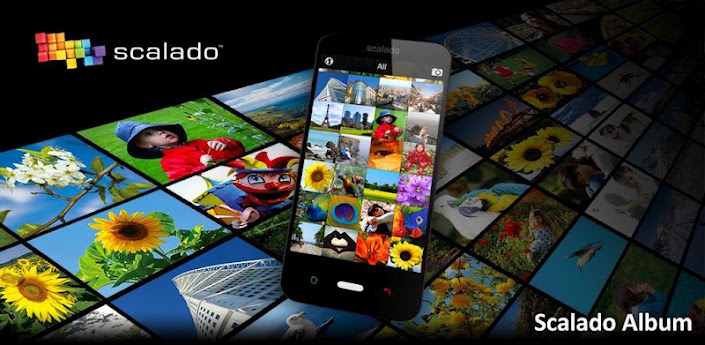
Scalado today released their first Android application, Album, an alternative to the gallery client that comes with your smartphone or tablet.  Available in Google Play today, the app runs 99¢ and works on 2.3.7+ devices, including tablets.


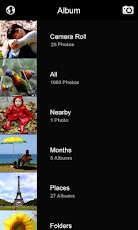
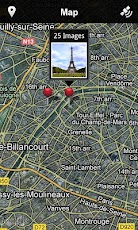
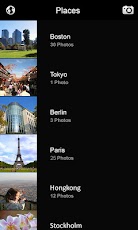
What makes Album different from the standard gallery app that comes preloaded on your handset?  It's fast, intuitive, and organized into different views.  Want to check all the pictures you've taken in April?  Bingo.  Want to see your photos listed in a map view that shows exactly where they were taken?  Presto.  Pull up the Nearby view and see photos taken close to your current GPS location.


We've played with a review build of Scalado Album for a week now and have come to appreciate its browsing, zooming, and panning speeds.  The various views aren't necessarily groundbreaking but they're handy to have in one collection.  One feature that I do enjoy is the animated thumbnail previews of videos when looking through folders.  This is convenient to have when you've recorded multiple clips in succession and need to quickly identify a particular video.


Features:
Superior gallery performance
Clean and smooth user experience
Intuitive browsing and navigation
Instant pan and zoom into every detail
Animated video thumbnails
Works on Android tablets


Views:
All - Shows all photos on the device
Places - Groups images into named geographical locations
Nearby - Shows all photos taken nearby the current GPS location
Map View -  Mapping of photos accessible from all grid views
Months - Groups images after calendar month captured
Folders – Shows images grouped after existing folders
Camera Roll - Shows all photos taken with the device camera

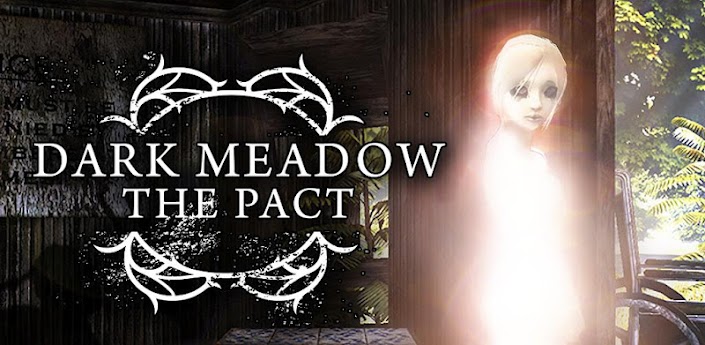
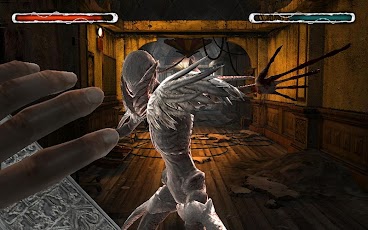
Review of Dark Meadow: The Pact, a Tegra 3 Game With Visually Stunning Graphics and Awesome Game Play


Remember back in the day when you could play cool PC games like Myst, where your fate was in your hands and it was entirely up to you to figure out what to do next? Well, NVIDIA recently teamed up with Phosphor games to bring us Android lovers a game similar to that but on a much higher level – Dark Meadow: The Pact. Now available for free in the Google Play store, Dark Meadow will provide you hours of nonstop fun all the while enjoying some of the greatest graphics I have seen yet on any Mobile device.
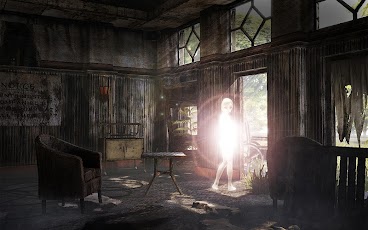
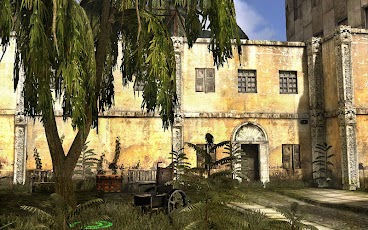
Taking full advantage of Nvidia’s Tegra 3 quad-core processor, Dark Meadow is powered by the “Unreal Engine” that is responsible for games such as Gears of War and Infinity Blade. It is safe to say that Dark Meadow is approaching console quality gaming and when I played it on the Transformer Prime I never experienced any lag to speak of. This quickly became my most favorite game on Android hands down. I had an opportunity to spend some time with this game over the past day and I’ve compiled a short review and demo video that you should check out after this break.
Once the game begins, you awake dazed and confused in an abandoned mental hospital, only to be befriended by what later appears to be the only living human left in the joint. Stuck in a wheelchair, your new friend is older and has obviously been stuck here for a while. He starts by giving you a short lowdown and wants to offer his knowledge and expertise in hopes that you, the younger agile type, will find a way for the two of you to get out of the hospital in one piece.
As if navigating your way through the old and maze-like building isn’t enough of a task, the old man warns you of the hospital witch, and her demon-esue posse. You never know when one of these creatures are going to pop up out of nowhere causing you to draw one of your weapons resulting in an all out battle. In the beginning, you start out with an old school crossbow for those enemies at a distance, and a shabby looking sword for those up close and personal encounters. As you kill your foe, not only do you gain experience points, but you collect coins that you can use in the store to purchase weapons and improve your tactical skills. Speaking of collecting coins, you can find bags of gold and gems throughout the hospital so you want to be sure you’re searching high and low for hidden goodies.
The game mechanics are fairly simple. You will notice green circles throughout rooms and hallways that denotes spots that you can move to. Tap on the nearest circle and you walk to that location. Once standing still, you can look everywhere in a 360 degree radius as well as up and down. When in battle mode and your crossbow is drawn, you simply pull back on the bow’s string, aim your trajectory, and let go of the arrow. When using the sword (or other close quarters weapons) you can swipe in a slashing motion to strike your opponent as well as tap and hold to block. Pressing the left and right on-screen buttons allow you to dodge.

Without giving away to much of the game that is all I really want to tell you guys. I’ve put together a short video showing the game in action but I really think you need to check this out for yourself. NVIDIA and Phosphor games have created a winner in my book, and being that it is a free game is a no brainer. So if you have a Tegra 3 powered device, I highly recommend checking it out! Also, don’t forget to enter out contest to win a new Transformer Prime and Keyboard dock brought to you by NVIDIA and Phosphor Games

Play Store download Link